Installing xkoranate
xkoranate is free and runs on Windows, Mac and Linux. There is no installer: you download a zip, unpack it, and open the app inside.
1. Download
Go to the Releases page and, under the newest release, open Assets. Pick the file for your computer:
| Your computer | Download the file ending in |
|---|---|
| Windows | -windows.zip |
| Mac with an Apple chip (M1, M2, M3, M4…) | -macos-arm64.zip |
| Older Mac with an Intel chip | -macos-x86_64.zip |
| Linux | -linux.tar.gz |
Which Mac do I have?
Open the Apple menu (top-left corner of the screen) and choose About This Mac. If it lists a
Chip (such as "Apple M2"), use arm64. If it lists a
Processor (such as "Intel Core i5"), use x86_64.
2. Unpack it
Double-click the downloaded file to unpack it, then move what's inside somewhere you'll find it again. Your Applications folder or your Documents folder are both fine.
- Windows: you get an
xkoranatefolder. The app isxkoranate.exeinside it. Keep the whole folder together, because the app needs the files next to it. - Mac: you get
xkoranate.app. - Linux: you get an
xkoranatefolder. The app is the file calledxkoranateinside it.
3. Open it the first time
xkoranate is made by volunteers and isn't registered with Apple or Microsoft. Your computer will warn you the first time you open it. This warning is expected, and you only have to deal with it once.
- Double-click
xkoranate.exe. - If a blue "Windows protected your PC" box appears, click More info.
- Click Run anyway.
- Right-click (or Control-click)
xkoranate.appand choose Open. - Click Open in the box that appears.
If your Mac only offers Done or Move to Bin:
- Click Done.
- Open System Settings › Privacy & Security.
- Scroll down and click Open Anyway next to the message about xkoranate.
Double-click the xkoranate file inside the folder.
It needs a reasonably recent system: Ubuntu 22.04, Linux Mint 21, Debian 12, Fedora 36 or newer. Nothing else needs installing. If nothing happens, see Troubleshooting.
A quick look around
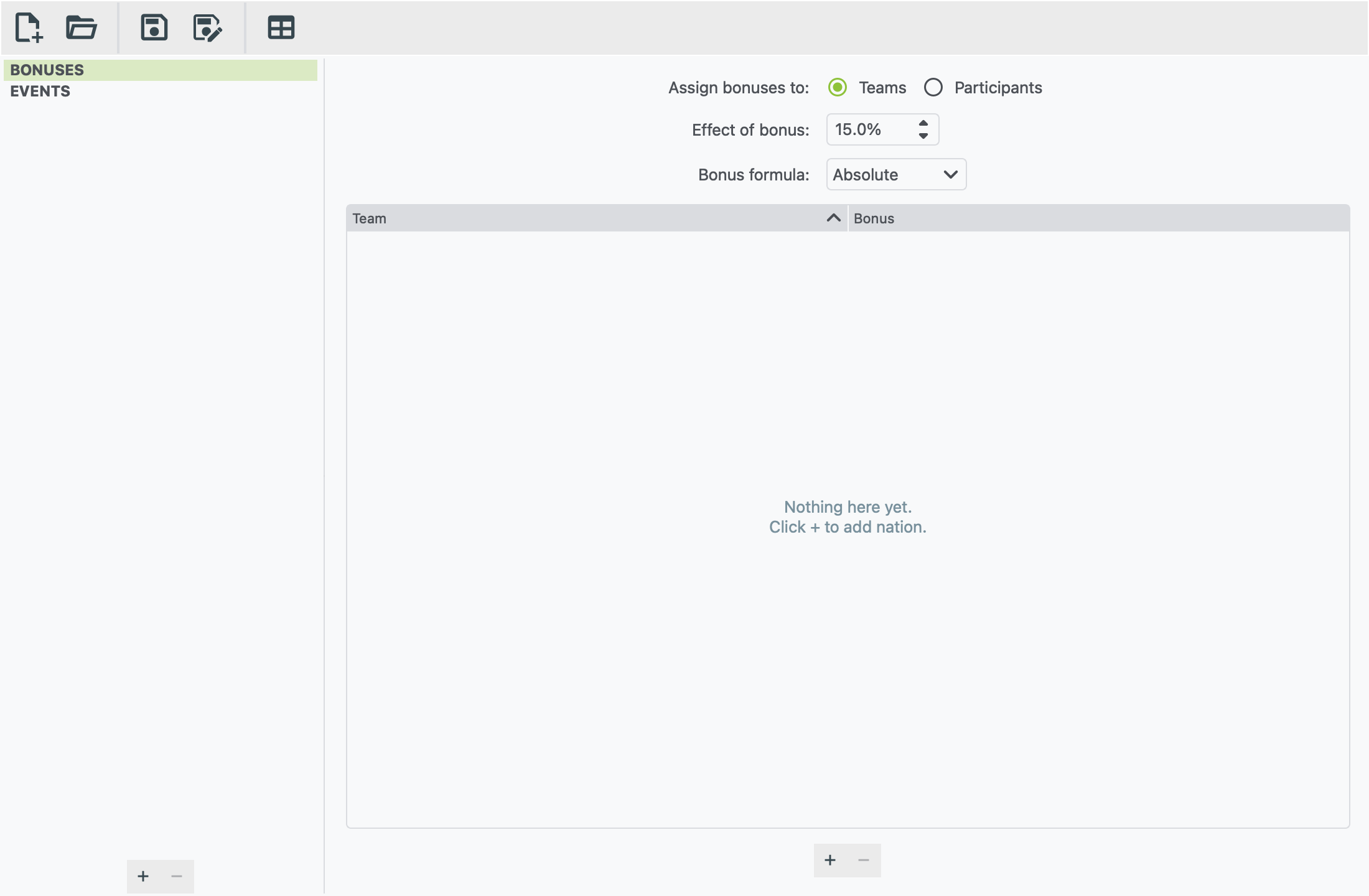
Toolbar (top). From left to right:
- New file and Open file
- Save and Save as
- Table generator, which turns match results into a league table
Hover over any button to see what it does.
Sidebar (left). It has two headings:
- BONUSES holds roleplay bonuses for this file. You can ignore it for now.
- EVENTS lists your events. Add one with the + button at the bottom of the sidebar.
Main area (right). This shows whatever you've selected in the sidebar.
One file, many events
One saved xkoranate file can hold every event of a tournament: the group stage, the knockout rounds, the 100 m and the marathon. You don't need a separate file for each event.
Menus
| Menu | What's in it |
|---|---|
| File | New, Open, Save, Save as, Table generator, Quit |
| View | The colour theme: Light, Dark or True Dark (OLED). xkoranate remembers your choice. |
| Help | xkoranate manual opens this guide. The shortcut is F1, or ⌘ ? on a Mac. |
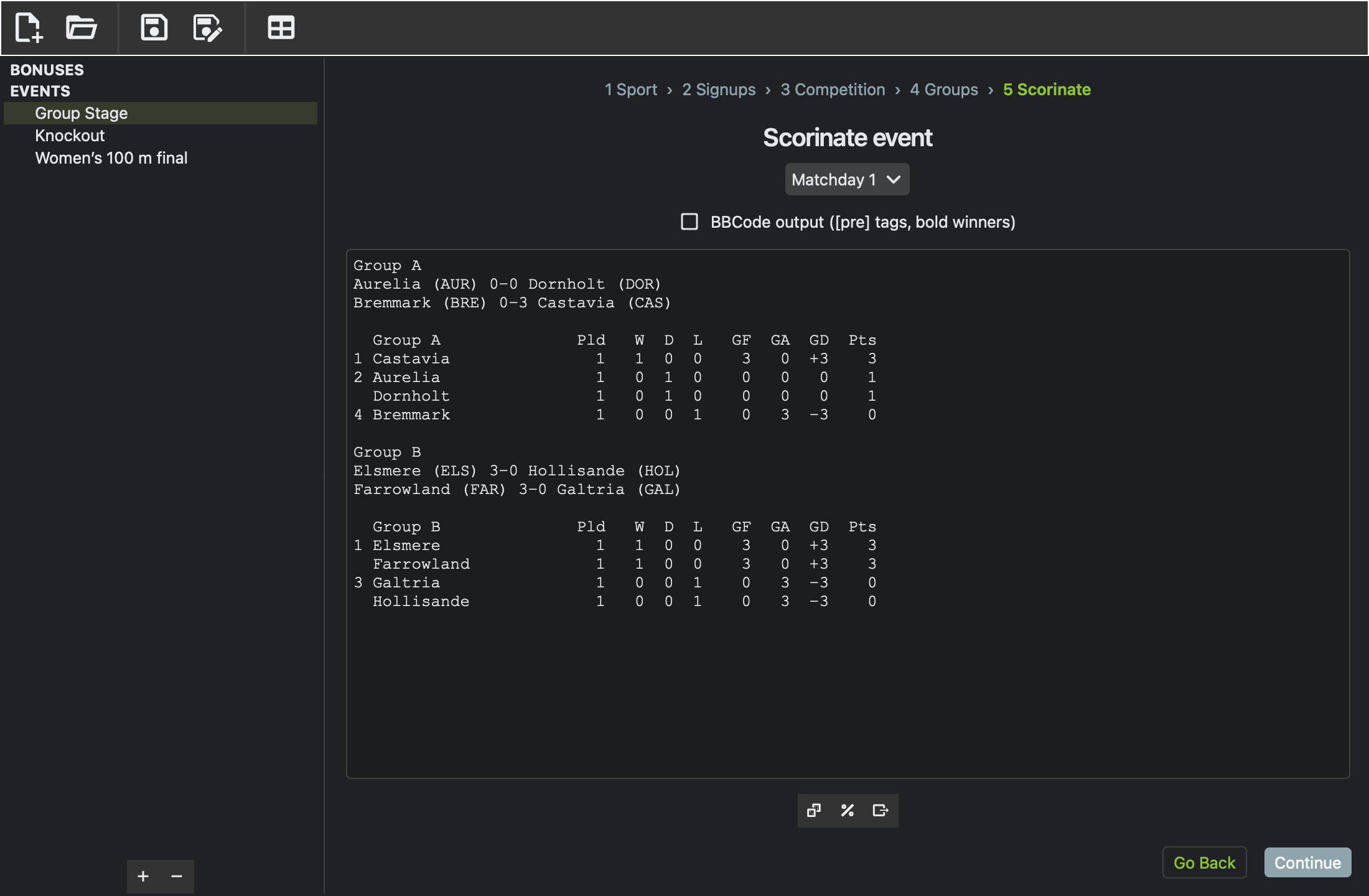
Saving your work
xkoranate doesn't save on its own. Save with File › Save (or Ctrl S, or ⌘ S on a Mac).
If you try to close the window or open another file with unsaved changes, xkoranate asks you first:
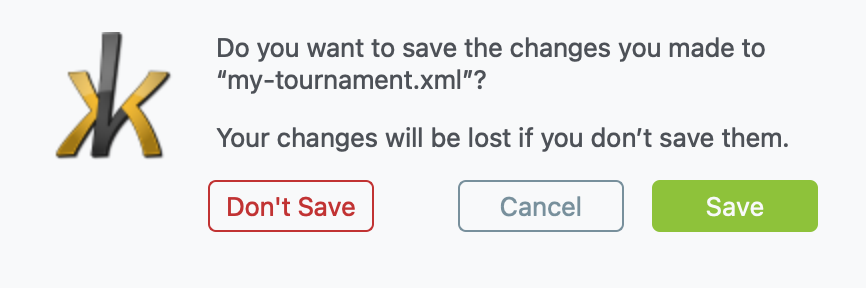
- Save keeps your changes.
- Discard throws them away.
- Cancel takes you back to what you were doing.
Files are saved as .xml. They also work in the original xkoranate
program, and the original's files work here.