Your first event
This walk-through takes about 10 minutes. You'll set up the group stage of a football tournament: eight nations in two groups of four, where everyone plays everyone else in their group. At the end you'll have a matchday of scores and both group tables, ready to post.
You'll go through the five steps xkoranate uses for every event. The bar across the top of the window always shows which step you're on:
1 Sport › 2 Signups › 3 Competition › 4 Groups › 5 Scorinate
Use Continue and Go Back in the bottom-right corner to move between steps.
Create the event
A tournament is usually one file with an event for each stage, such as Group Stage and Knockout. You'll make the Group Stage here.
- Open xkoranate.
- Click + at the bottom of the sidebar. A new, empty event appears under EVENTS with its name ready to type.
- Type
Group Stageand press Enter.
You can rename an event later by double-clicking its name.
Step 1: pick the sport
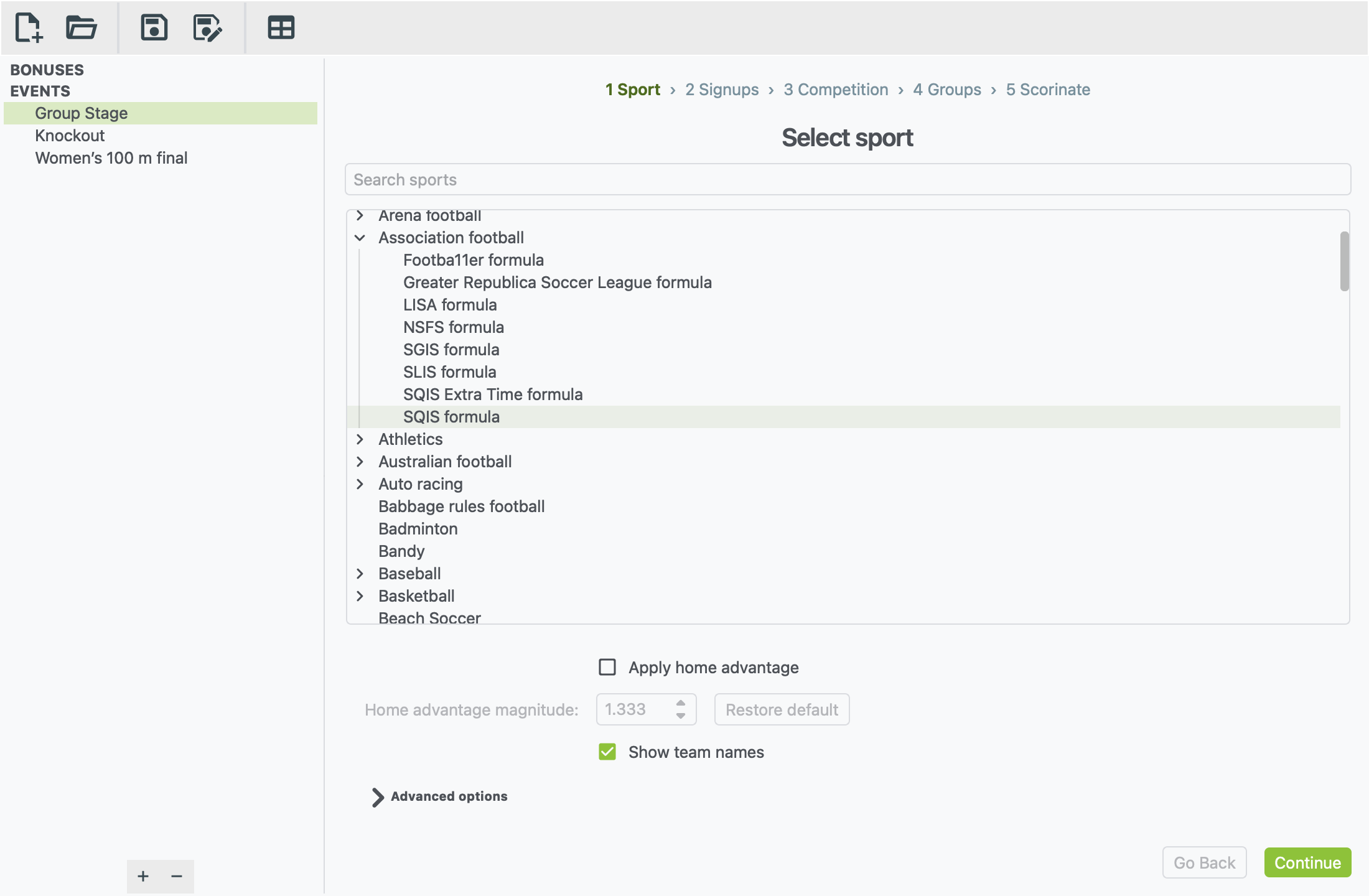
- Click in Search sports and type
football. - Under Association football, click SQIS formula.
Many sports offer more than one formula. Each formula has a slightly different way of generating results, and you can pick whichever one you like. This example uses SQIS.
Some sports show extra settings below the list once you pick them, such as Apply home advantage here. You can leave these alone. They are explained in Setting up an event.
Click Continue.
Step 2: add the teams
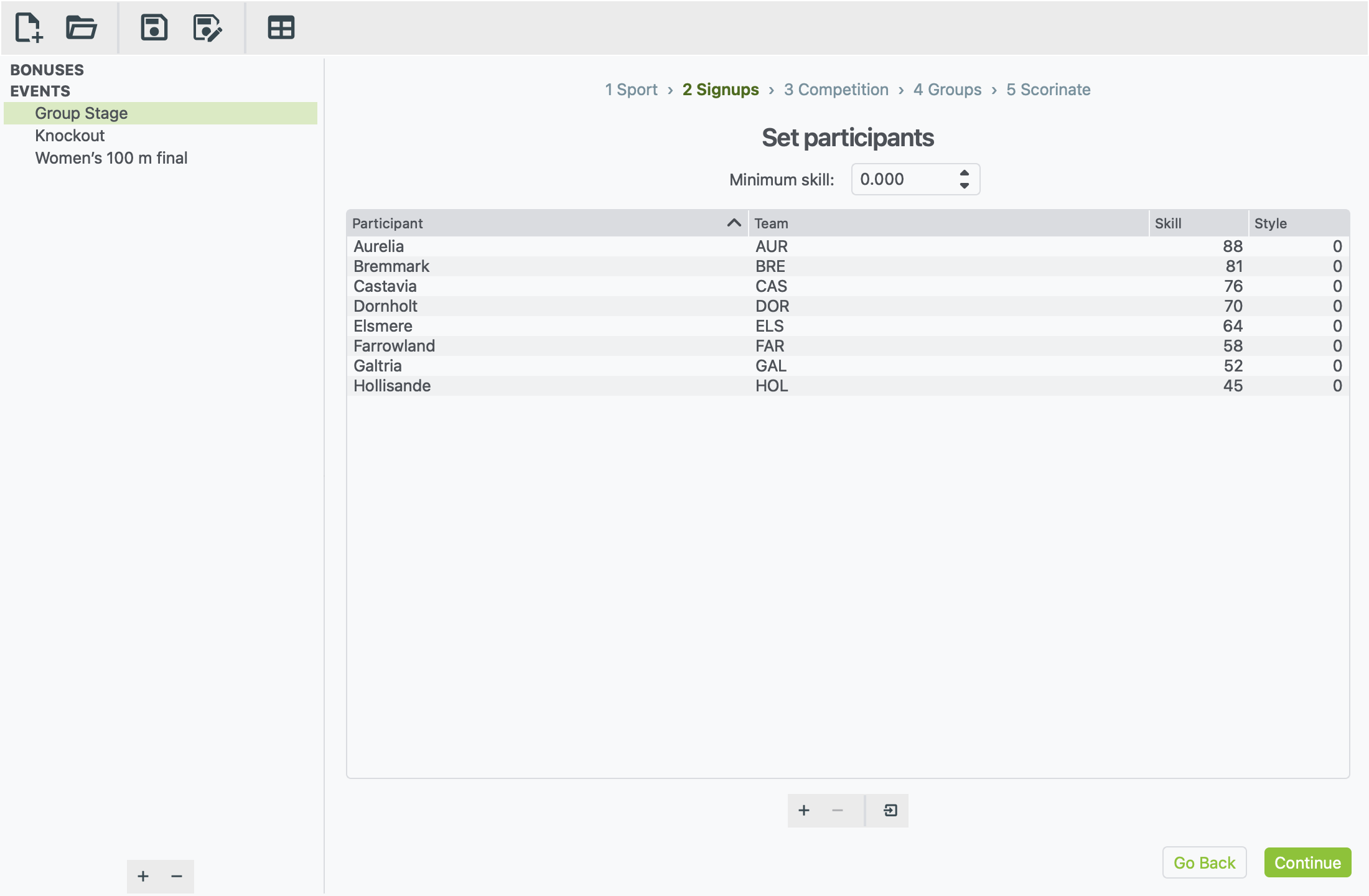
Each row is one team, or one athlete in individual sports. Add eight rows:
- Click + under the list. A new row appears.
- Double-click each cell to fill it in:
- Participant: the name shown in results, such as
Aurelia. - Team: a short code for the nation, such as
AUR. - Skill: how strong they are, such as
88. Higher is better.
- Participant: the name shown in results, such as
- Repeat for the other seven nations.
Got a sign-up list already?
You can import a whole list from a text file instead of typing it in. See Importing sign-ups from a file.
What skill numbers should I use? Many NS Sports events have their own ranking system, and which ranks work best depends on the formula.
SQIS compares ranks as a ratio. It looks at how many times stronger one team is than the other, not at the gap between them:
- 80 against 40 plays exactly like 2 against 1. In both cases one team is twice as strong.
- 90 against 80 is a close match, because the ratio is close to 1.
- Every rank must be above 0.
The Minimum skill box above the list sets the lowest rank you can type. You can leave it at 0.
Click Continue.
Step 3: choose the format
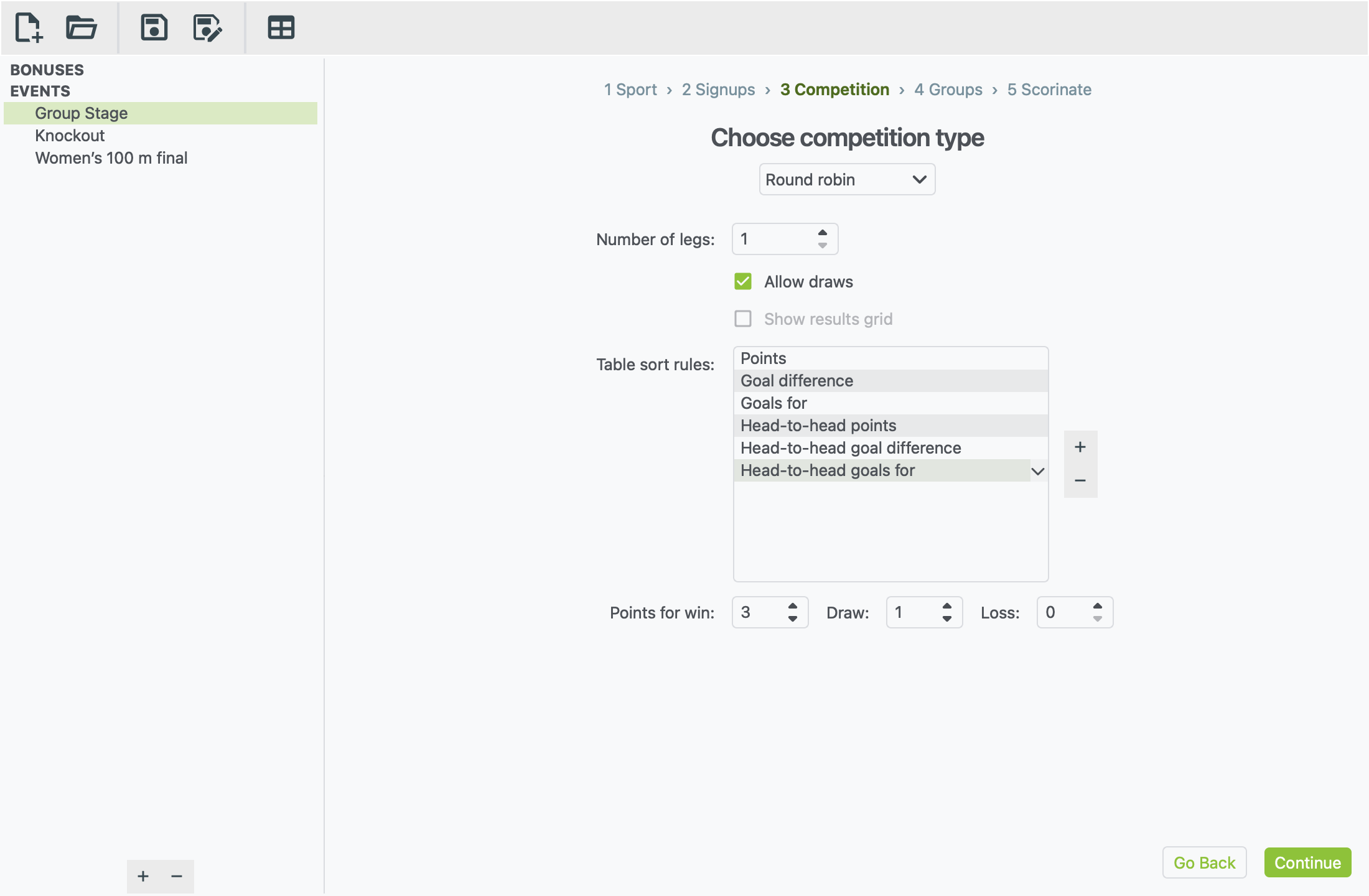
- Open the drop-down and choose Round robin. This means everyone plays everyone.
- Leave the settings as they are:
- one leg (each pair plays once; choose 2 for home and away)
- draws allowed
- 3 points for a win, 1 for a draw
Table sort rules decide the order when teams finish level on points. They are applied from the top down: points first, then goal difference, then goals scored, then head-to-head. You can change them:
- Add a rule: click + next to the list, then pick a rule from the drop-down. Choices include away goals, wins and a coin flip.
- Remove a rule: select it and click −.
- Change a rule: double-click it and pick another.
- Reorder the rules: drag a rule up or down the list.
Click Continue.
Step 4: split the teams into groups
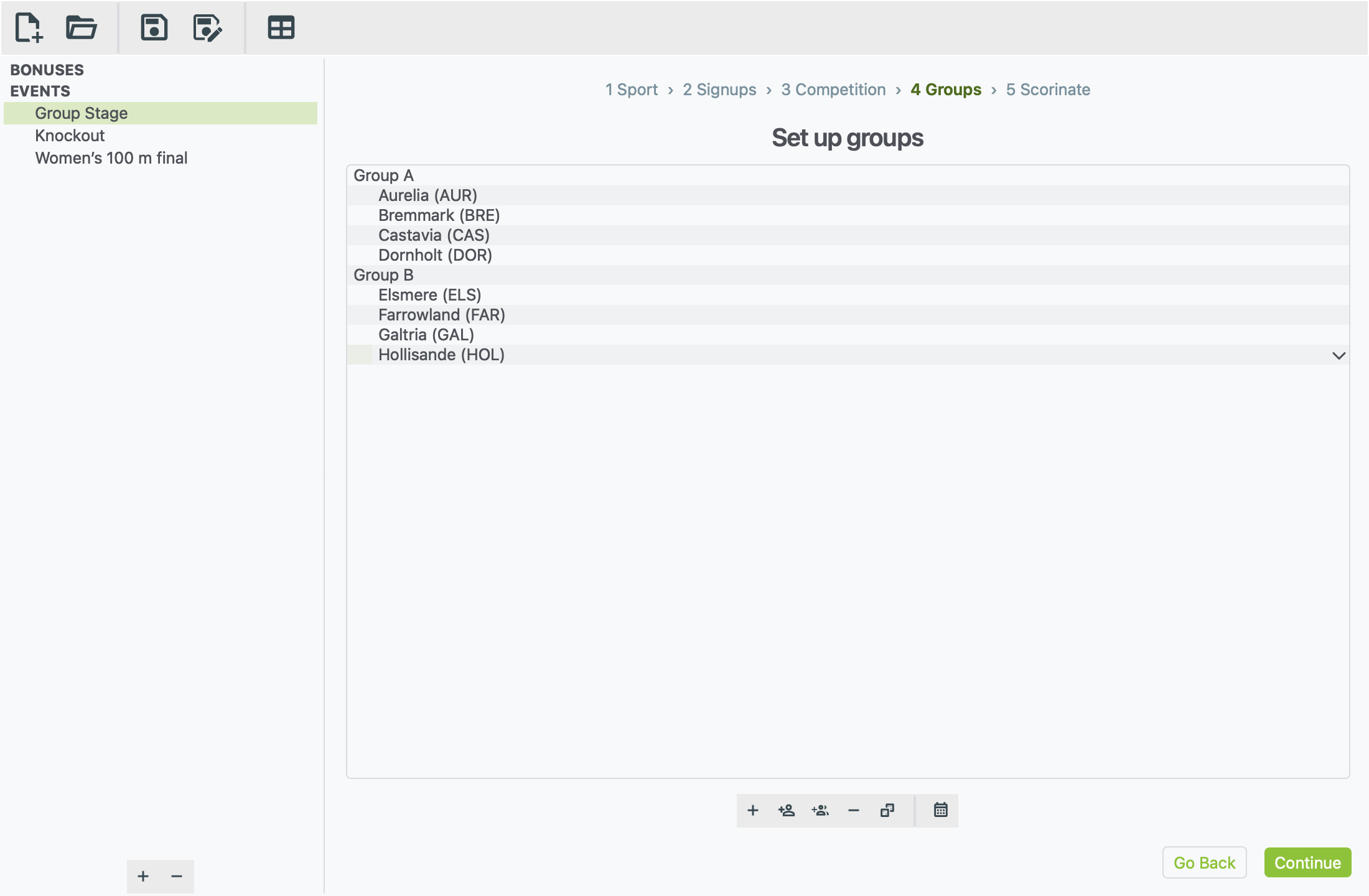
- Click + in the toolbar under the list. A new group appears, ready to name.
- Type
Group Aand press Enter. - Click + again, type
Group Band press Enter. - Fill Group A. Select it, then click the Add a participant button (a person with a plus sign) and pick a team from the list. Do this four times.
- Fill Group B the same way with the other four teams.
You can also click Add all available participants (two people with a plus sign) to put everyone in one group, then drag four of them into the other group.
To check the fixtures, click the calendar button (View full schedule):
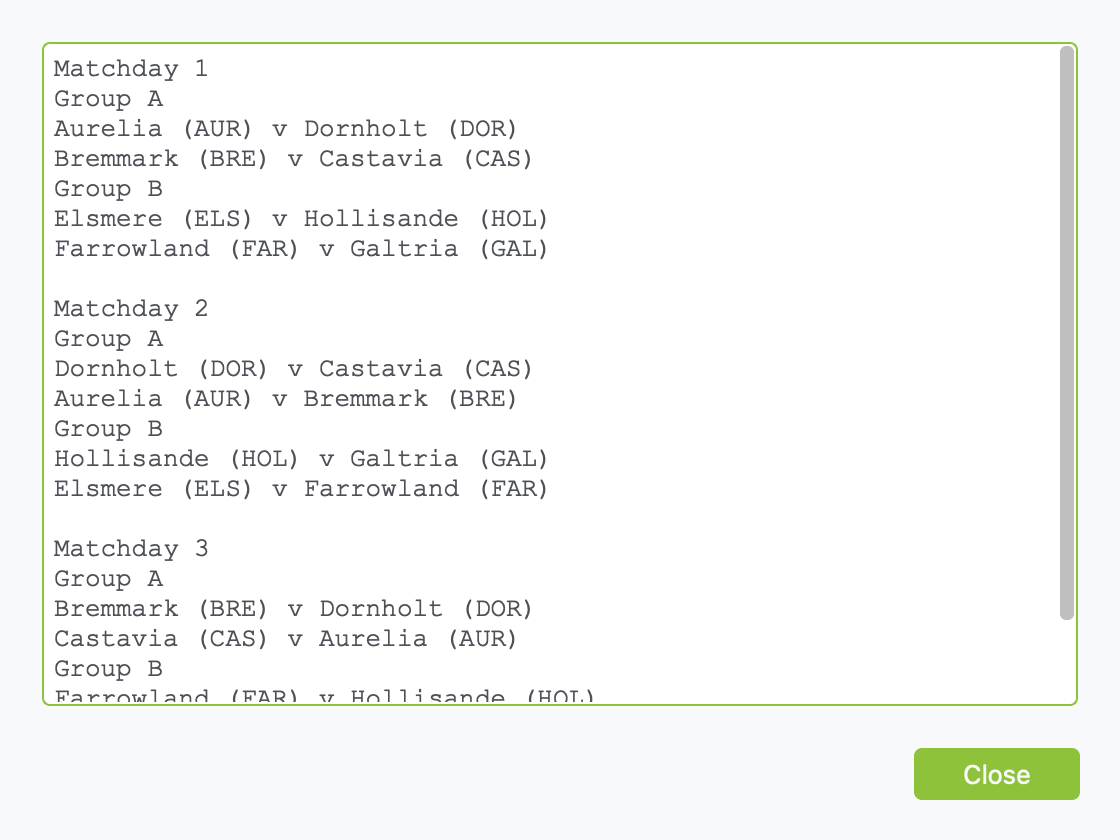
Click Close, then click Continue.
Step 5: scorinate
- Click the dice button under the empty box. This is Scorinate event.
- The scores for Matchday 1 appear, with a table for each group.
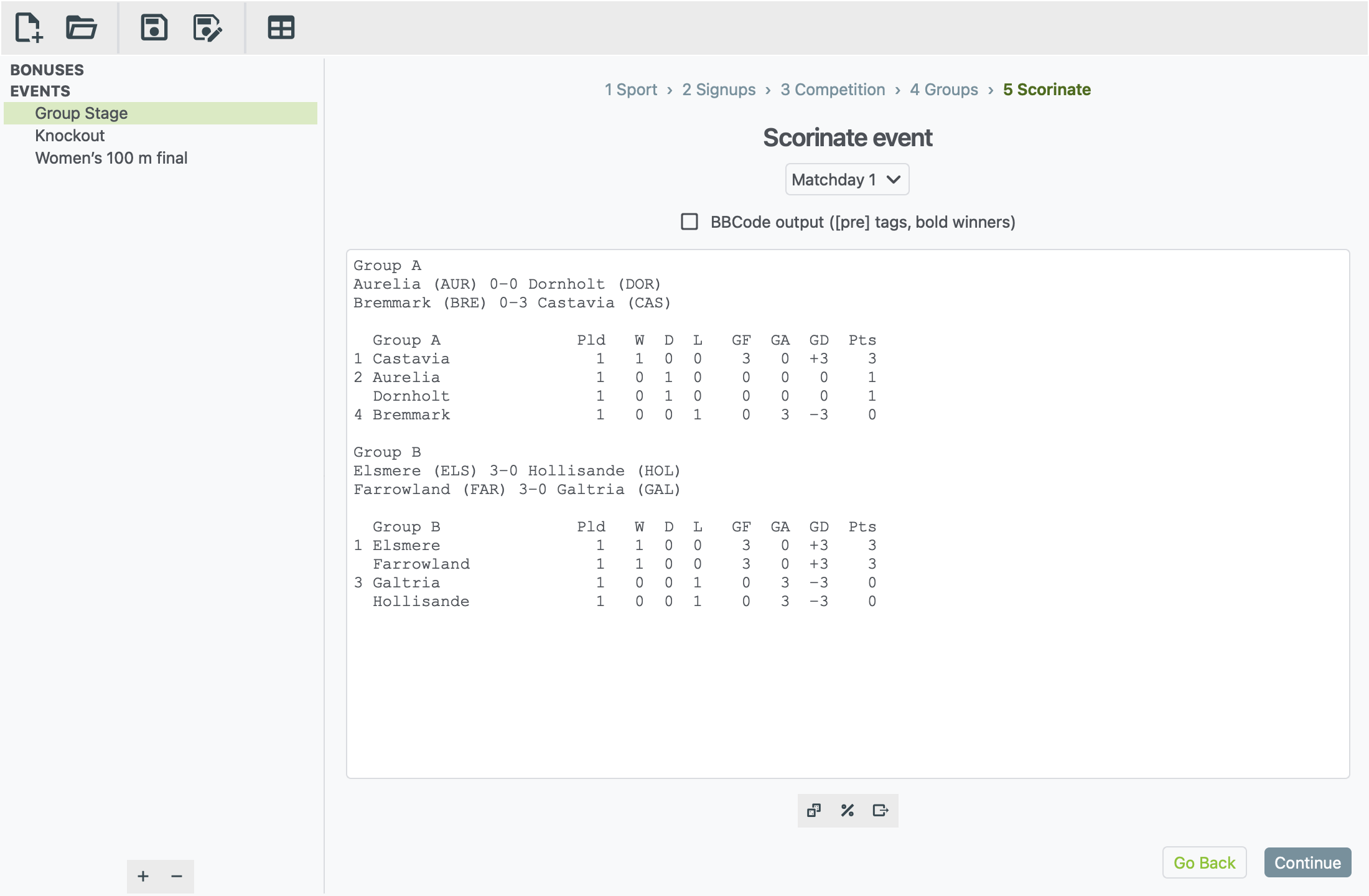
Want to know the odds? Before you roll the dice, click the % button (View match odds) under the results box. It shows every fixture in the selected matchday, with each side's chance of winning and the chance of a draw. xkoranate works these out by playing each match 1,000 times.
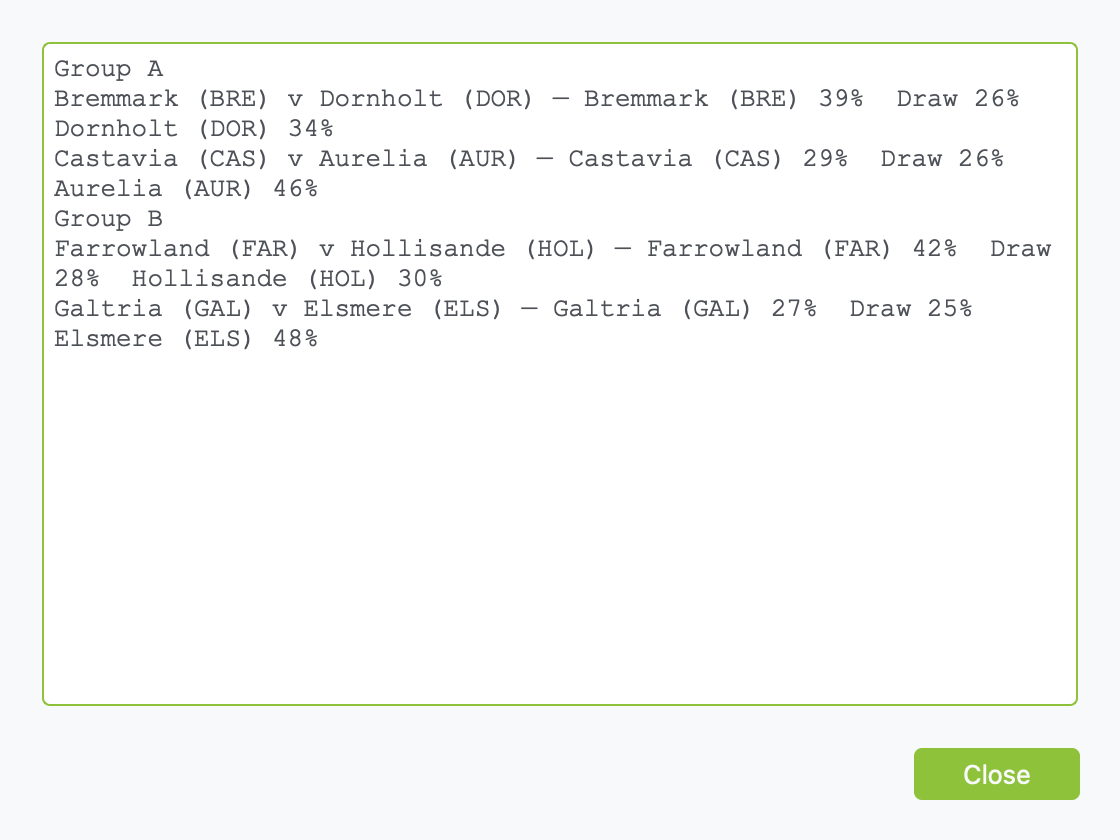
To play the next matchday:
- Pick Matchday 2 from the drop-down above the results.
- Click the dice again.
You can also pick Matchday 3 and click the dice once. xkoranate asks whether to fill in Matchday 2 on the way.
Rolling the dice again replaces results
Clicking the dice on a matchday that already has results makes new ones. xkoranate asks before it does this, so you won't lose a matchday by accident.
Post it
- Tick BBCode output above the results. This wraps the results in
[pre]tags so the columns line up on the forum, and makes each winner bold. - Click in the results box.
- Press Ctrl A to select all, then Ctrl C to copy. On a Mac, use ⌘ instead of Ctrl.
- Paste into your forum post.
To keep a copy as a file instead, click Export to file. It's the right-hand button under the results.
Save
Choose File › Save, give the file a name, and you're done. Next time, use File › Open to come back to it. Your results are kept in the file.
Where next?
- Your first race sets up a 100 m final, which works a little differently from matches.
- When the groups are finished, make a Knockout event in the same file for the teams that went through. See Knockout brackets.
- Setting up an event explains everything on each step, including knockout cups and races.
- The table generator makes a league table from results you already have.